Premium Options
Please Note: If you make changes to the options on any of the tabs, the Save icon in the bottom right-hand corner of the window will turn blue. You must save your changes before navigating out of this window.
Jurisdiction Options
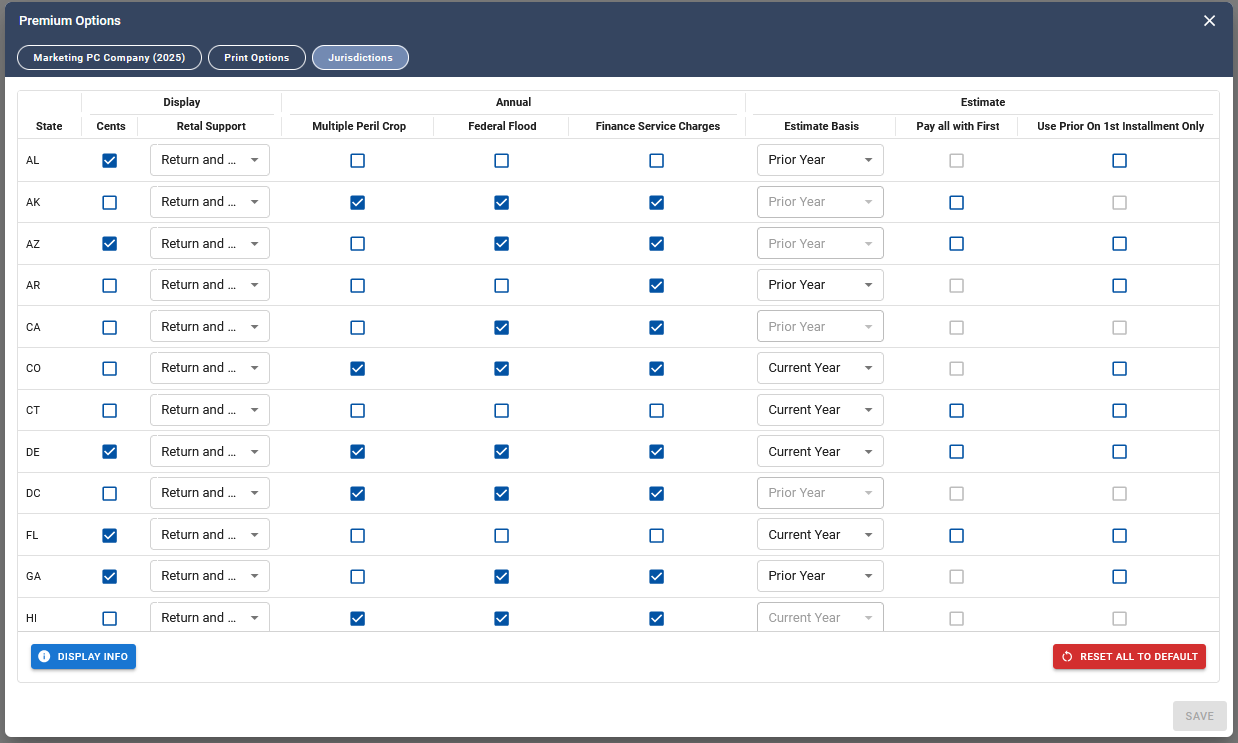
The Jurisdiction tab provides options that can be set on a jurisdiction-by-jurisdiction basis. These options include:
- Display Cents – When checked, the returns for that jurisdiction will calculate to the nearest cent; otherwise, all returns for that jurisdiction will round to whole dollars.
- Retal Support - The default for Retal Support is to have both the Retaliatory Return and the Retal worksheet. Available options are to use only the retaliatory returns or only the retaliatory worksheets. The underlying calculations will not be changed but access to the return and the worksheet can be controlled through this option.
- Estimate Basis - Estimate Basis may be either “Prior Year” or “Current Year”. If prior year is selected, the estimate returns will use the amount in the Prior Year Tax Liability column of the Estimate Schedule to calculate the estimated current year liability. If “Current Year” is selected, the estimate returns will use the amounts entered in the “Current Year or [Qtr] Installment Premiums” columns on the Estimate Schedule.
- Pay All with First - Check the box to indicate that you wish to pay the entire estimated tax liability with the first installment, if permitted.
- Use Prior on 1st Installment Only - Check the box to calculate the first installment using the prior year tax liability.
P&C Company Jurisdiction Options
- Multi Peril Crop – Check the box to include Multi Peril Crop premiums as taxable.
- Federal Flood – Check the box to include Federal Flood premiums as taxable.
- Finance and Service Charges – Check the box to include Finance and Service Charges as taxable.
These options may include default selections based on what is generally accepted by the corresponding jurisdiction. Certain estimate-related options, such as Estimate Basis and Pay All with First, may be locked and not editable if required by the jurisdiction.
Display Info
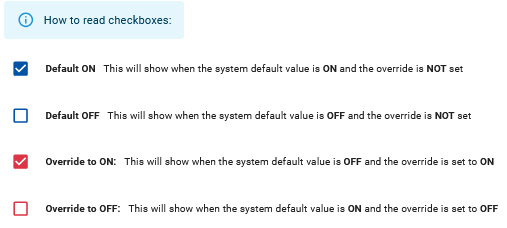
The Display Info button, located in the bottom left-hand corner of the Jurisdiction tab, opens a legend that explains the meaning of the check mark indicators and color coding.
- Blue box with a check mark – Default ON. This indicates that the system default value is ON and no override has been set.
- Blue box without a check mark – Default OFF. This indicates that the system default value is OFF and no override has been set.
- Red box with a check mark – Override to ON. This indicates that the system default value is OFF and an override has been set to turn the option ON.
- Red box without a check mark – Override to OFF. This indicates that the system default value is ON and an override has been set to turn the option OFF.
Related Articles